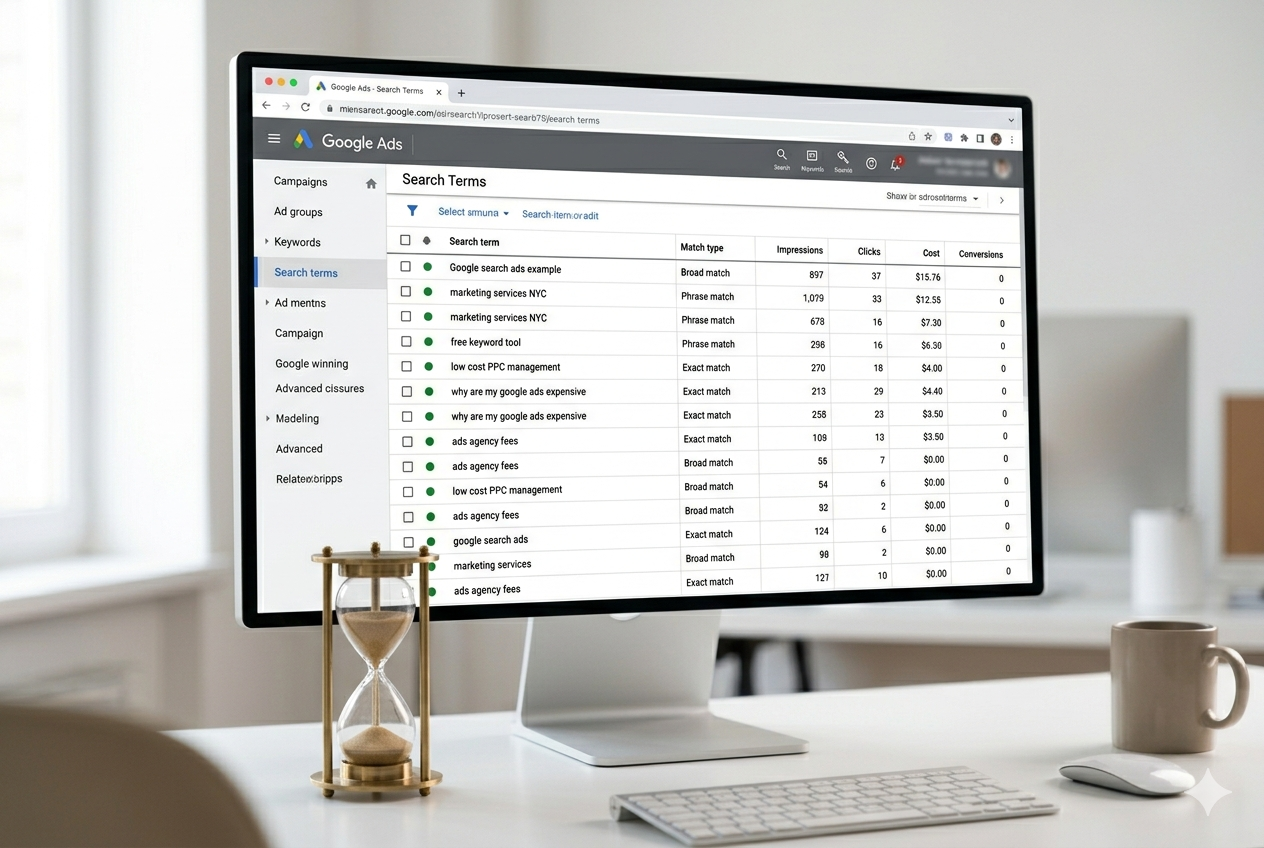
The Google Ads Search Terms report is one of the most underused tools in the platform. Ignoring it is one of the fastest ways to drain your budget on traffic that was never going to convert. Used consistently, it is a direct path to reduce Google Ads cost without touching your bids or restructuring your campaigns.
Most advertisers — especially juniors — open their dashboard and head straight for the summary numbers: impressions, clicks, cost. They scan, make a few adjustments, and move on. What they rarely ask is where those clicks actually came from. Which real search queries triggered the ad? Who was actually on the other end of that click?
That answer lives in the Google ads Search Terms report. If you have not checked it in the last 30 days, there is a real chance you are paying for queries that have nothing to do with your business.
This guide walks you through exactly how to read it, what patterns to look for, and how to act on what you find — without disrupting the parts of your campaign that are already working.
What the Google Ads Search Terms Report Actually Shows
There is an important distinction that trips up a lot of advertisers: keywords and search terms are not the same thing.
A keyword is what you bid on inside Google Ads. A search term is what the person actually typed into Google before clicking your ad. With broad match and phrase match keywords, Google has significant latitude to match your ad to queries that are related to — but not identical to — your keyword.
For example, if you are bidding on the keyword “project management software”, Google might show your ad to someone searching for “free task management app for students”. That click costs you money. If you sell a paid B2B tool, that visitor is almost certainly not going to convert.
The Google Ads Search Terms report shows you every real query that triggered an ad impression or a click during your selected date range. It is one of the most honest views of your campaign you will find inside the platform.
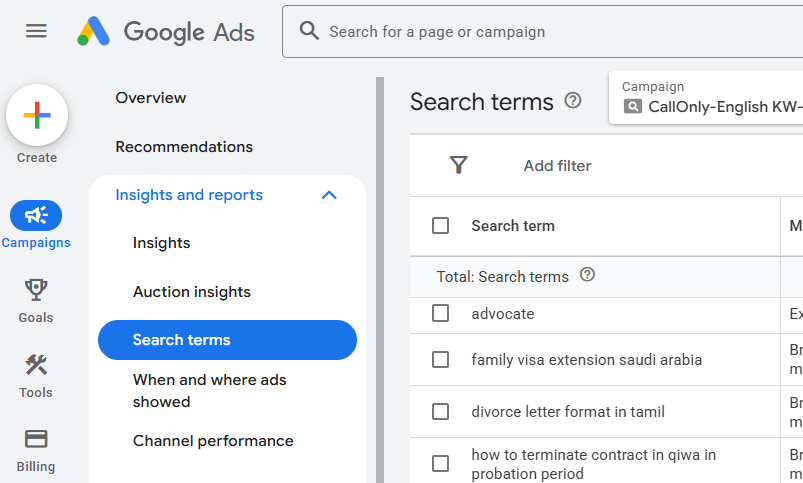
Where to Find Google Ads Search Terms Report.
The report is straightforward to access once you know where to look.
Log into your Google Ads account and navigate to the campaign or ad group you want to review. In the left-hand menu, look for Campaigns especially the section labeled “Insights and report”. Underneath that, you will find “Search Terms“. Click it.
You can run the report at the account level, campaign level, or ad group level. Start at the campaign level to get a useful overview, then drill down into specific ad groups when you find something worth investigating.
Set your date range to at least the last 30 days to give yourself enough data to spot patterns. If your campaign is newer or lower volume, go back 60 to 90 days.
The Three Query Types to Look For
When you are scanning through the report, you are looking for three distinct categories of problematic queries. Each one requires a slightly different response.
1. Completely Irrelevant Terms
These are queries with no plausible connection to what you offer. They are the clearest wasted spend and the easiest to eliminate.
A plumbing company bidding on “emergency plumber” and appearing for “emergency vet near me” is a straightforward example. The person was not looking for a plumber. The click does nothing for the campaign and costs real money.
Look for queries that belong to entirely different industries, queries with purchase intent pointing at something you do not sell, and informational queries with no commercial value to your business.
Add these as negative keywords immediately.
2. Competitor Brand Terms
These are searches that include a competitor’s brand name. Your ad showing up for these queries is not always wrong — but it requires a deliberate decision, not an accident.
Bidding on competitor terms can work well if your offer is clearly stronger or your pricing is more competitive. It works poorly if your landing page does not directly address why someone would switch, or if those clicks convert at a significantly lower rate.
Check the conversion data for any competitor-branded queries. If they are getting clicks but not converting, you are funding your competitor’s brand awareness by keeping users in the consideration phase without capturing them.
Make a deliberate choice: either build a dedicated comparison landing page to support these queries, or exclude them.
3. High-Cost, Zero-Conversion Queries
This category is the most important and the most commonly overlooked. These are search terms that look relevant on the surface — they are in the right industry, they use the right language — but they have spent a meaningful budget without producing a single conversion.
A query like “what is Google Ads” triggering an ad for a Google Ads management agency is a reasonable example. It is in the right space. But the person is at the very beginning of their research. They are not ready to hire anyone.
Sort your Google ads Search Terms report by cost, then filter for zero conversions over your selected date range. Any query that has spent more than your target cost-per-acquisition with no result is a candidate for exclusion or segmentation into a separate lower-bid ad group.
How to Build a Negative Keyword List From What You Find
Once you have identified the problematic queries in the Google Ads search terms report , you need to add them as negative keywords. Here is how to do it without breaking your campaign in the process.
Exact Match vs Broad Match Negatives
Negative keywords use the same match types as regular keywords, but they work in reverse.
- Exact match negative: Blocks your ad only when the query matches your negative keyword precisely. Use this when you want to exclude a specific term without blocking broader related queries. Example: [-free] as an exact match negative will block “free project management software” but not “project management software free trial”.
- Phrase match negative: Blocks any query that contains your negative keyword phrase in that order. More powerful and slightly less precise.
- Broad match negative: Blocks queries that contain any of the words in your negative, in any order. Use with caution at the campaign level.
For most clean-up work, exact match negatives give you the most control. Use phrase match negatives for patterns you want to exclude across many variations — like the word “free” or “jobs” or “DIY”.
Where to Add Them
Negative keywords can be applied at two levels, and the decision matters.
- Ad group level: Blocks the query only within that specific ad group. Use this when the term is problematic in one context but acceptable in another.
- Campaign level: Blocks the query across every ad group in that campaign. Use this for terms that are irrelevant regardless of context — competitor brand terms you have decided to exclude, off-topic industry terms, and clear intent mismatches.
For a cleaner long-term structure, consider building a shared negative keyword list at the account level for universal exclusions. This saves time when you add new campaigns later.
A Real Example
Wasted Spend Found in One Session
Here is a concrete example of what this looks like in practice.
A client running Google Ads for a B2B accounting software product came to me with a campaign that had been running for six weeks. Their cost per lead was nearly double their target. They assumed it was a bidding problem.
When we opened the Google Ads Search Terms report filtered by cost with zero conversions, the pattern was immediate. A large portion of their spend was being triggered by queries containing the words “free”, “open source”, and “small business” appended to their keywords. Their product starts at $300 per month and is built for mid-sized finance teams. None of those queries were aligned with their buyer.
We added 14 negative keywords across two sessions. Within three weeks, their cost per lead dropped by 34% with no change to their bids or budget.
The campaign was never underperforming. It was just showing ads to the wrong people.
How Often to Run This Audit
This is not a one-time task. Search behavior shifts over time, Google’s matching gets broader, and new irrelevant queries will keep appearing as long as your campaigns are running.
The Full Audit: Monthly
Once a month, run a full review of the past 30 days. Sort by cost, filter for zero conversions, and work through the list systematically. This typically takes 20 to 40 minutes depending on campaign volume.
The Quick Check: Weekly
Each week, spend 10 minutes on the report filtered to the past 7 days. You are not doing a deep audit here — you are looking for anything obviously wrong that appeared recently. New irrelevant terms, sudden cost spikes from a query that slipped through, or a competitor query that just showed up for the first time.
Set a recurring task for Monday morning. It takes less time than most people spend writing a single email, and the cumulative effect on your campaign efficiency over months is significant.
What This Looks Like Over Time
The first time you run this audit, you will likely find 10 to 20 terms worth excluding. Your negative keyword list will be thin and your campaign will still be spending on some noise.
After three months of consistent monthly audits and weekly checks, your negative keyword list will be considerably larger, your impression share on relevant queries will increase, and your cost per conversion will reflect the actual quality of your targeting — not the noise around it.
This is one of those tasks where the work compounds. The negatives you add this month protect your budget next month and every month after that.
The Google Ads Search Terms report does not require advanced knowledge or a big budget to use effectively. It requires consistency and the willingness to look at where your money is actually going rather than just the top-level metrics.
If you are managing your own Google Ads campaigns and have not opened this report in the last 30 days, that is the first thing to do after reading this. Set aside 30 minutes. Sort by cost. Filter for zero conversions. The data will tell you what to do next.
If you would rather hand this off to someone who does it as a regular part of campaign management, you can reach out through the contact page and I can take a look at what your campaigns are actually spending on.